
Tutorial · free for Windows 10 and 11
Settings: themes, GPU speed, output folder and updates
S Converter works well out of the box, but a few settings let you make it faster and make it yours. Press Settings at the bottom of the sidebar.
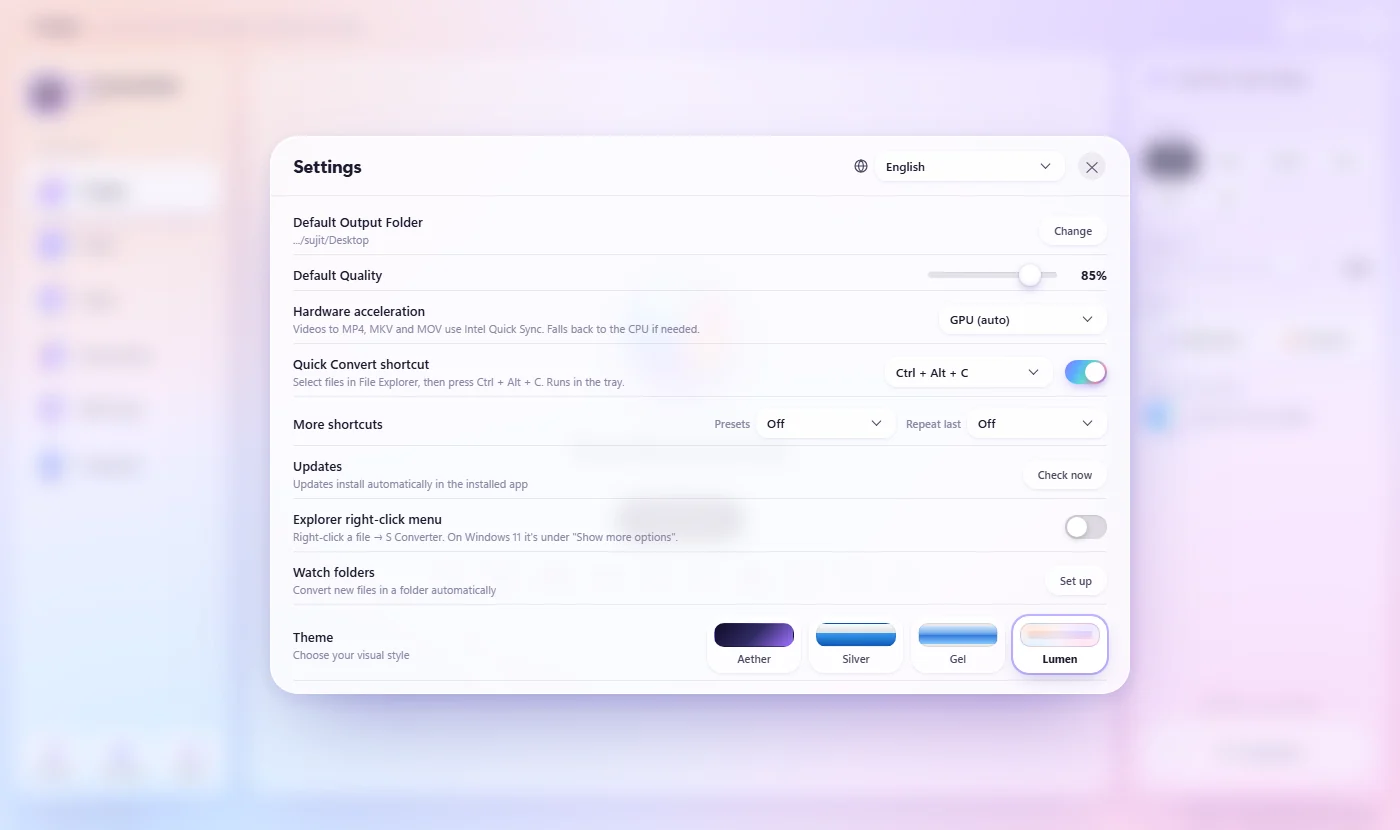
Change a setting
- Press Settings at the bottom left of S Converter.
- Change what you like (see below). Changes apply straight away.
- Close the window with ✕.
What each setting does
Default Output Folder is where files go when Save at source folder is off. Default Quality is where the Quality slider starts. Hardware acceleration: GPU (auto) uses your NVIDIA, Intel or AMD graphics card for videos to MP4, MKV and MOV, and falls back to the processor if needed; CPU only never uses it. Quick Convert shortcut sets or turns off Ctrl + Alt + C. Updates install automatically; Check now looks straight away. More shortcuts adds keys for the wheel’s Presets page and for Repeat last. Explorer right-click menu adds S Converter to File Explorer’s menu. Watch folders converts new files in folders you choose (see Watch folders). Theme picks the look: Lumen, Aether, Silver or Gel. Language, at the top of Settings, switches between 20 languages.
Good to know
Four themes
From glassy and colourful to classic chrome; the Quick Convert wheel follows along.
20 languages
Pick one at the top of Settings, or leave it on Automatic to follow Windows.
Faster video
With a graphics card, videos usually convert several times faster.
See what you have
About shows the version, your graphics card and which tools are ready.
Questions
Should I switch hardware acceleration off?
Usually not. Leave it on GPU (auto); if a video ever fails on the graphics card, S Converter redoes it on the processor by itself.
How do I know I have the latest version?
Updates install automatically. Press Check now under Updates, or look at the version in About.
Keep learning
Get S Converter
Free, no ads, no account. Images, video, audio, documents, PDFs and archives, all converted on your own PC.
