
Tutorial · free for Windows 10 and 11
Getting started with S Converter
S Converter converts images, video, audio, documents and PDFs on your own PC. This tutorial takes you from installing it to your first finished batch in about two minutes.
Install S Converter
- Get it from the Microsoft Store (search for “S Converter”), or download the installer from the website.
- Open it from the Start menu. There’s no account to create and nothing to set up.
Convert your first files
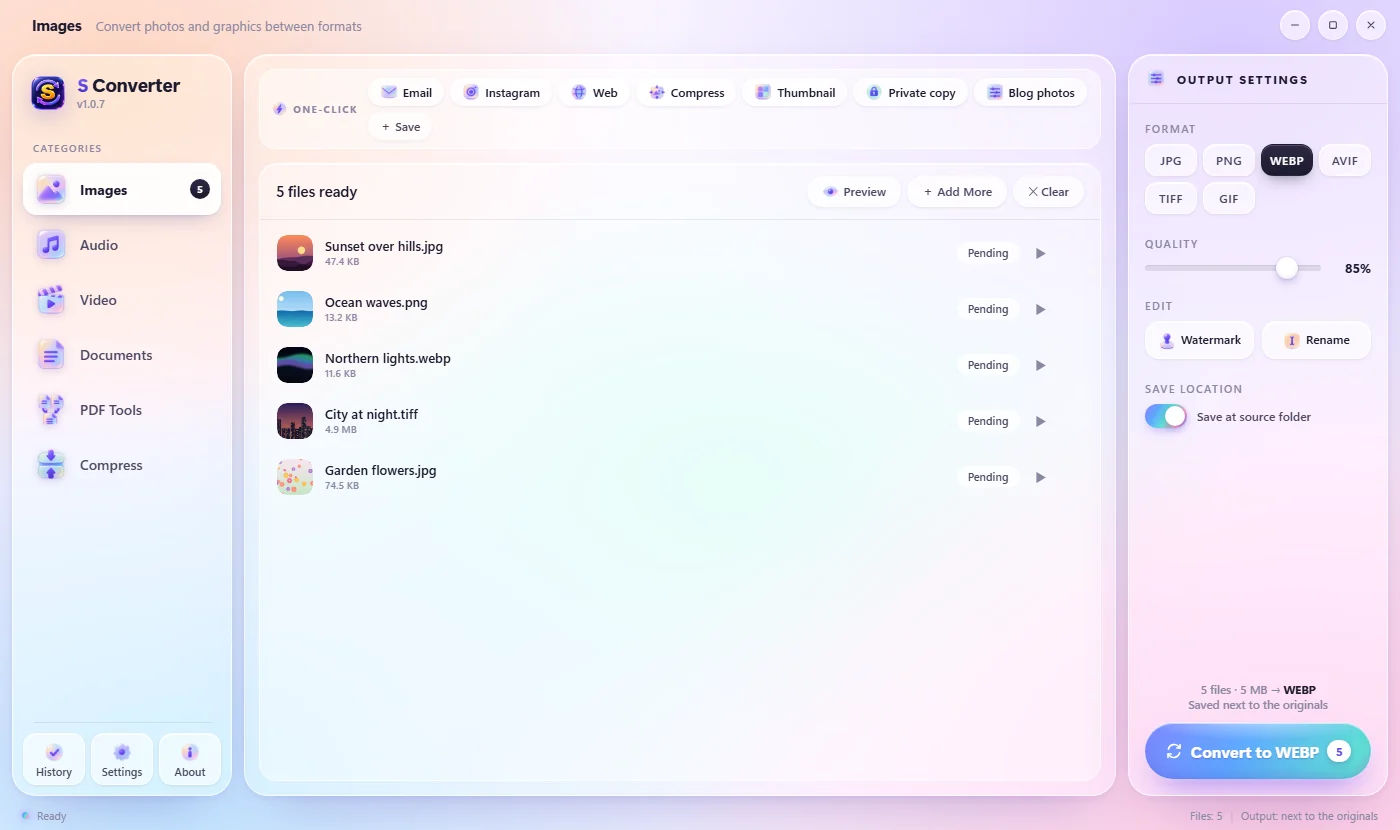
- Pick a kind of file in the sidebar: Images, Audio, Video, Documents, PDF Tools or Compress.
- Drag your files (or a whole folder) into the window, or press Browse files. Use Add More to add another batch.
- Under Format on the right, pick what you want, for example JPG. Adjust Quality if you like.
- Press the big Convert button. You can Pause or Cancel while it works.
- When it’s done, press Open or Show next to any file, or Open folder. Convert more starts a new batch.
Where do the converted files go?
With Save at source folder switched on (the default), each new file is saved next to its original with SC added to the name, so Holiday.heic becomes HolidaySC.jpg. Switch it off to choose one folder for everything under Save to. Your originals are never changed.
Good to know
Drop the wrong kind of file?
S Converter moves to the right category for you: drop a video while on Images and it switches to Video.
Same names, clear results
Convert Report.docx and Report.md together and you get Report (docx).pdf and Report (md).pdf, not “(1)” and “(2)”.
Check before you convert
Press Preview to look through the photos, videos or songs in your list first.
Questions
Is S Converter really free?
Yes. There are no ads, no account, no watermark on your files and no limit on how many files you convert.
Does it upload my files?
No. Everything is converted on your own computer, and it works with no internet connection.
Which version should I install, Microsoft Store or the website?
Either. The Microsoft Store version installs without any warning and puts S Converter in Windows 11’s main right-click menu. Both update themselves automatically.
How do I update S Converter?
You don’t need to. Updates download and install automatically, and never in the middle of a conversion.
Keep learning
Get S Converter
Free, no ads, no account. Images, video, audio, documents, PDFs and archives, all converted on your own PC.
