
Tutorial · free for Windows 10 and 11
Quick Convert: convert files without opening the app
The fastest way to convert on Windows: select files where they already are, press a shortcut, click a format. S Converter’s Quick Convert wheel opens right at your mouse, and the app itself never has to open.
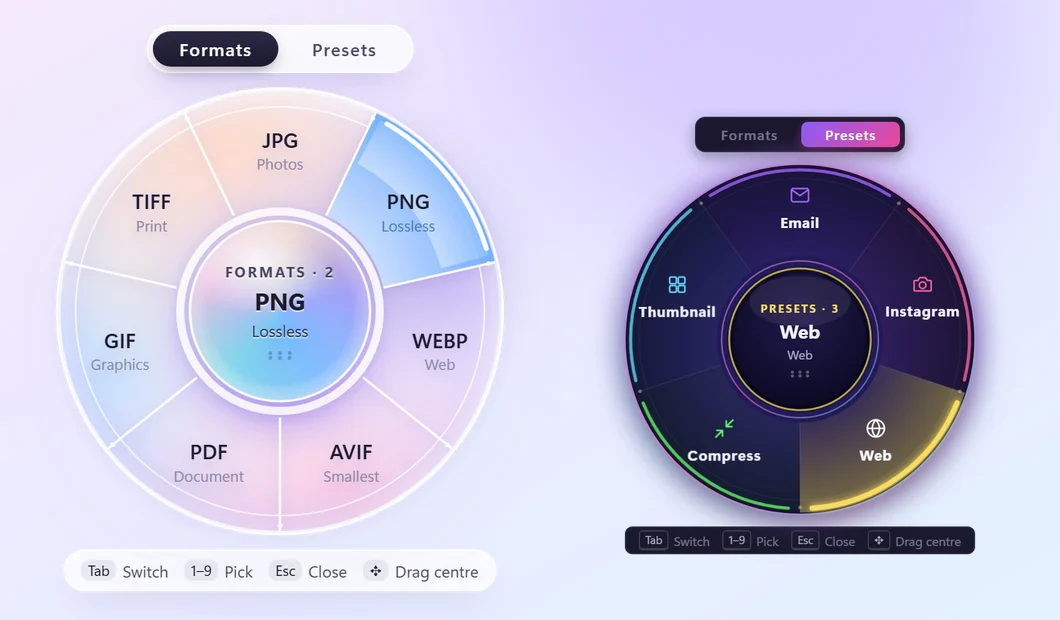
Use the wheel
- Select one or more files (or folders) in File Explorer, on the desktop, or in an Open or Save dialog of any program.
- Press Ctrl + Alt + C. The wheel opens where your mouse is.
- Click a format, such as JPG, MP4 or PDF. Or press Tab to switch to Presets like Email, Instagram or WhatsApp.
- Watch the progress in the middle of the wheel. The new files appear next to the originals.
Keyboard and mouse
Tab switches between Formats and Presets, the number keys 1–9 pick a slice, Esc closes the wheel, and you can drag the centre to move it. The wheel offers what fits the files you selected: formats for photos, video, audio, documents and PDFs, and ZIP or 7Z for folders.
Turn it on, off or change the keys
- Open S Converter and press Settings.
- Under Quick Convert shortcut, pick another key combination, such as F8, or use the switch to turn it off.
Two more shortcuts
In Settings, More shortcuts adds two keys of your own, for example F7 and F9. Presets opens the wheel straight on its Presets page, including your own presets. Repeat last does the last thing you chose for that kind of file again, without opening the wheel at all: select more photos, press the key, done.
Watch it
The video loads from YouTube only when you press play.
Good to know
Works from the tray
S Converter waits quietly in the system tray, so the shortcut works any time.
Several images to PDF
Choose PDF for several photos: one combined PDF, or one per photo? For one PDF, the pages are listed in name order and you can drag them into the order you want.
Matches your theme
The wheel follows the theme you picked in Settings, from glassy Lumen to dark Aether.
Questions
The shortcut does nothing. What’s wrong?
S Converter has to be running (look for its icon in the system tray). If another app already uses Ctrl+Alt+C, Settings tells you, and you can pick another shortcut.
Can I use it on a whole folder?
Yes. Select a folder to zip it, or select files inside it to convert them all at once.
Where are the converted files saved?
Next to the originals, with “SC” added to the name, so nothing is overwritten.
Keep learning
Get S Converter
Free, no ads, no account. Images, video, audio, documents, PDFs and archives, all converted on your own PC.
