
Tutorial · free for Windows 10 and 11
Watch folders: convert new files automatically
Some jobs repeat every day: screenshots to JPG, scans to PDF, phone photos without their location. Tell S Converter which folder to watch and what to do, and it does it by itself whenever a new file arrives.
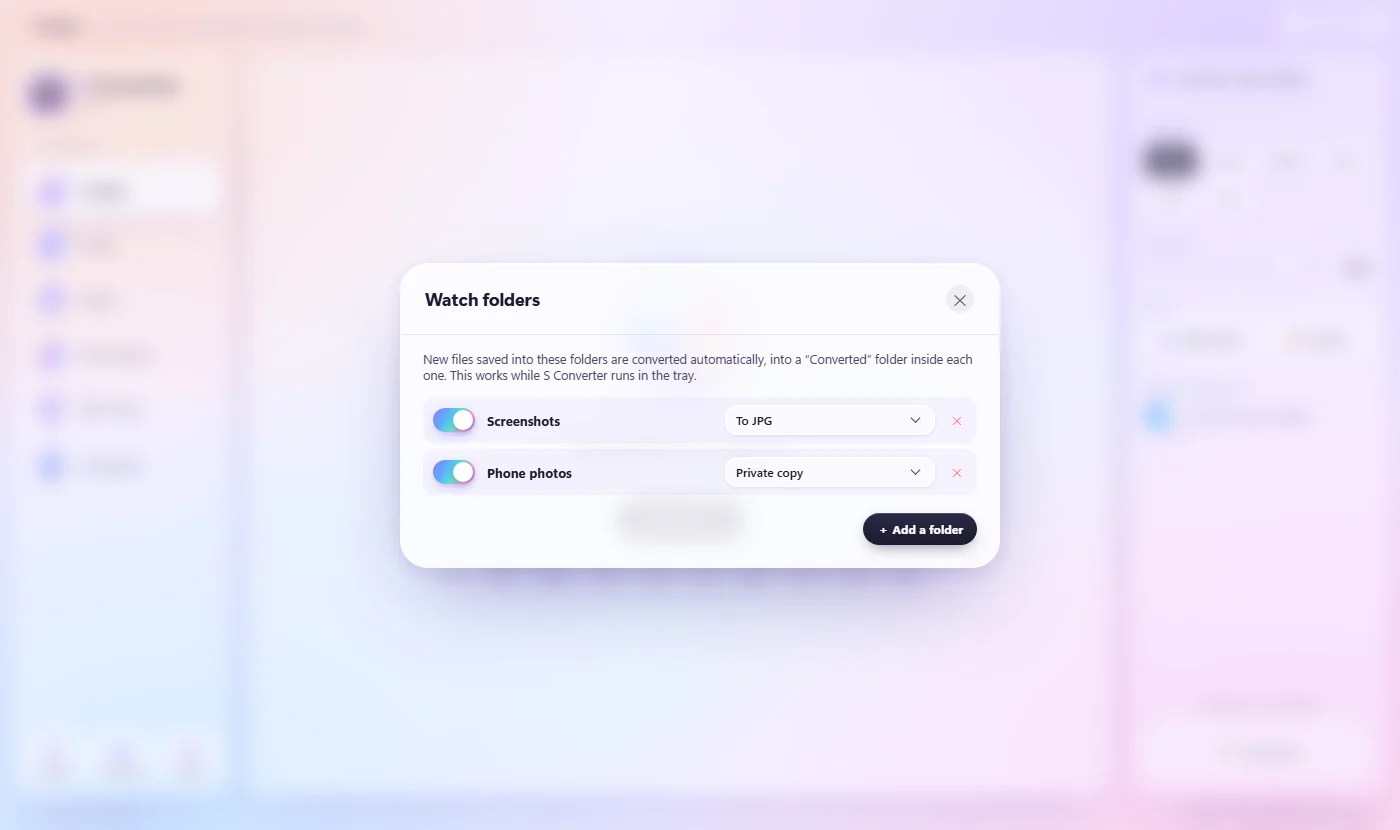
Watch a folder
- Press Settings, and next to Watch folders press Set up.
- Press + Add a folder and choose the folder, for example Pictures\Screenshots.
- Pick what to do with new files from the list: a format such as To JPG, or a preset such as Private copy or Email.
- That’s it. New files in that folder are converted into a Converted folder inside it.
Pause or stop
Each folder has a switch to pause it, and ✕ stops watching it. Watching works while S Converter runs in the system tray, so it keeps going after you close the window.
See what was converted: History
Press History at the bottom of the sidebar. It lists every job, from the app, the wheel, the right-click menu or a watch folder, newest first, with Open and Show buttons for the results. It keeps the last 300 jobs, only on your PC; Clear history empties it.
Good to know
Set once, forget
Screenshots, downloads and scans are converted as they arrive.
Originals stay put
Results go into a Converted folder, so nothing is moved or overwritten.
Any format or preset
Formats for photos, video, audio, documents and PDFs, and presets like Private copy.
Questions
Does it convert files that were already in the folder?
No, only new files that arrive after you start watching.
Does it slow my PC down?
No. It waits until a file has finished copying, then converts it, one at a time.
Why don’t Merge or Lock appear in the list?
Those need you to choose files or type a password, so they can’t run on their own.
Keep learning
Get S Converter
Free, no ads, no account. Images, video, audio, documents, PDFs and archives, all converted on your own PC.
