
Tutorial · free for Windows 10 and 11
Use S Converter in your language
S Converter is available in 20 languages, and it starts in your Windows language automatically. You can switch to any of them at any time.
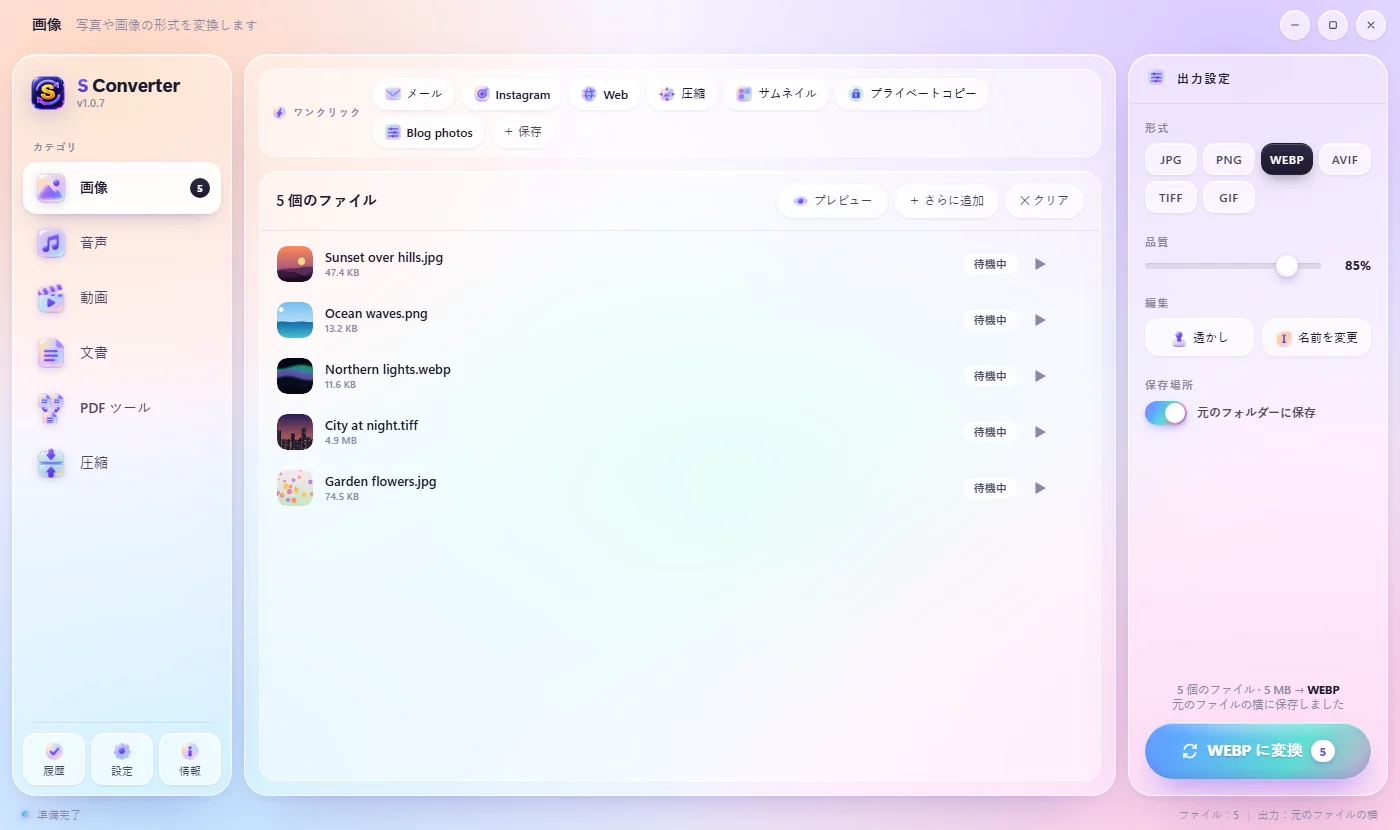
Change the language
- Press Settings.
- At the top of the window, open the language list (it shows Automatic (Windows) at first).
- Choose your language. S Converter switches straight away.
The 20 languages
English, Sinhala (සිංහල), German (Deutsch), Spanish (Español), French (Français), Italian (Italiano), Dutch (Nederlands), Polish (Polski), Portuguese (Português do Brasil), Turkish (Türkçe), Indonesian (Bahasa Indonesia), Vietnamese (Tiếng Việt), Russian (Русский), Ukrainian (Українська), Hindi (हिन्दी), Thai (ไทย), Chinese Simplified (简体中文), Chinese Traditional (繁體中文), Japanese (日本語) and Korean (한국어). Automatic (Windows) follows your Windows display language, and uses English if yours isn’t on the list yet.
Good to know
Everywhere
The app, the Quick Convert wheel, the tray menu and notifications all switch.
Automatic
It follows Windows unless you pick a language yourself.
Sri Lankan made
S Converter is built in Sri Lanka, and Sinhala is fully supported.
Questions
My language isn’t listed. Can it be added?
Ask for it on S Converter’s GitHub page. More languages are on the way.
Does the language change the file names it creates?
No. Converted files keep the same names in every language.
Keep learning
Get S Converter
Free, no ads, no account. Images, video, audio, documents, PDFs and archives, all converted on your own PC.
