
Tutorial · free for Windows 10 and 11
Trim a video or audio file
Keep just the good part. Drag two handles on the timeline, check it, and S Converter saves only that piece, in any format you like.
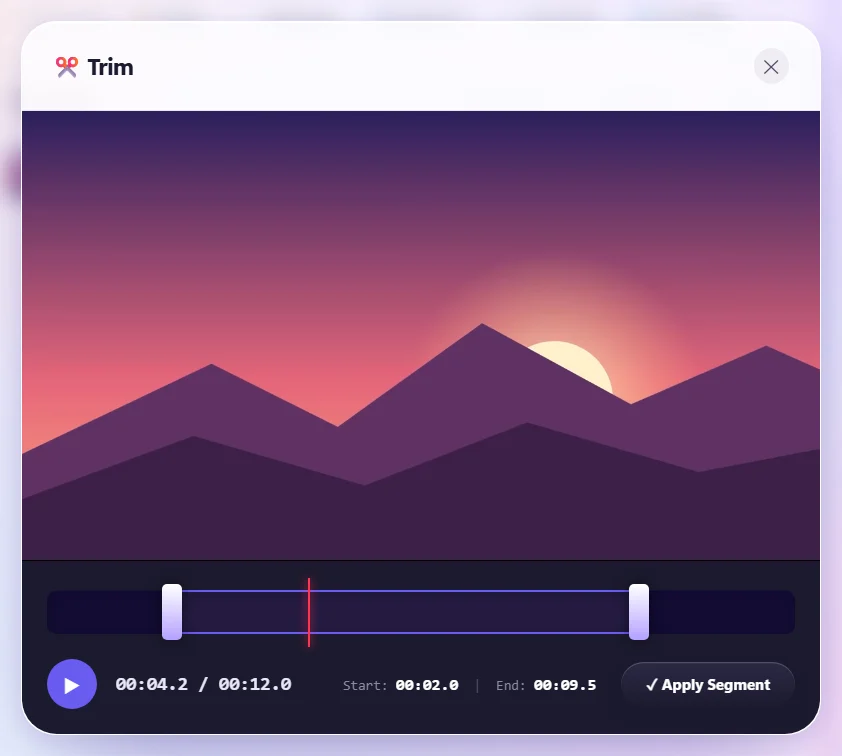
Trim a clip
- Choose Video or Audio in S Converter and add your file.
- Under Edit, press Trim.
- Drag the left handle to where it should start and the right handle to where it should end. Press ▶ to check; the times are shown under the timeline.
- Press Apply Segment.
- Pick a format (MP4, MP3 and so on) and press Convert.
Good to know
The cut applies to every file in the list, so trim one file at a time when each needs a different cut. Trimming also works when you convert a video to MP3, which is an easy way to save just one song from a recording.
Good to know
See what you cut
The video plays right in the trimmer.
Any output
Save the piece as MP4, GIF, MP3 or any other format.
Smaller files
A shorter clip is a smaller file, handy for sharing.
Questions
Does trimming reduce quality?
The trimmed part is converted with the quality you choose, the same as any conversion.
How do I make a ringtone?
Trim the song to the part you want, then convert to MP3. Or use the Ringtone preset, which keeps the first 30 seconds.
Keep learning
Get S Converter
Free, no ads, no account. Images, video, audio, documents, PDFs and archives, all converted on your own PC.
