
Tutorial · free for Windows 10 and 11
Lock a PDF with a password, or unlock one
Sending a contract, a payslip or a medical letter? Lock the PDF with a password first. And when you have a password-protected PDF you’re tired of unlocking, S Converter can save a copy without it.
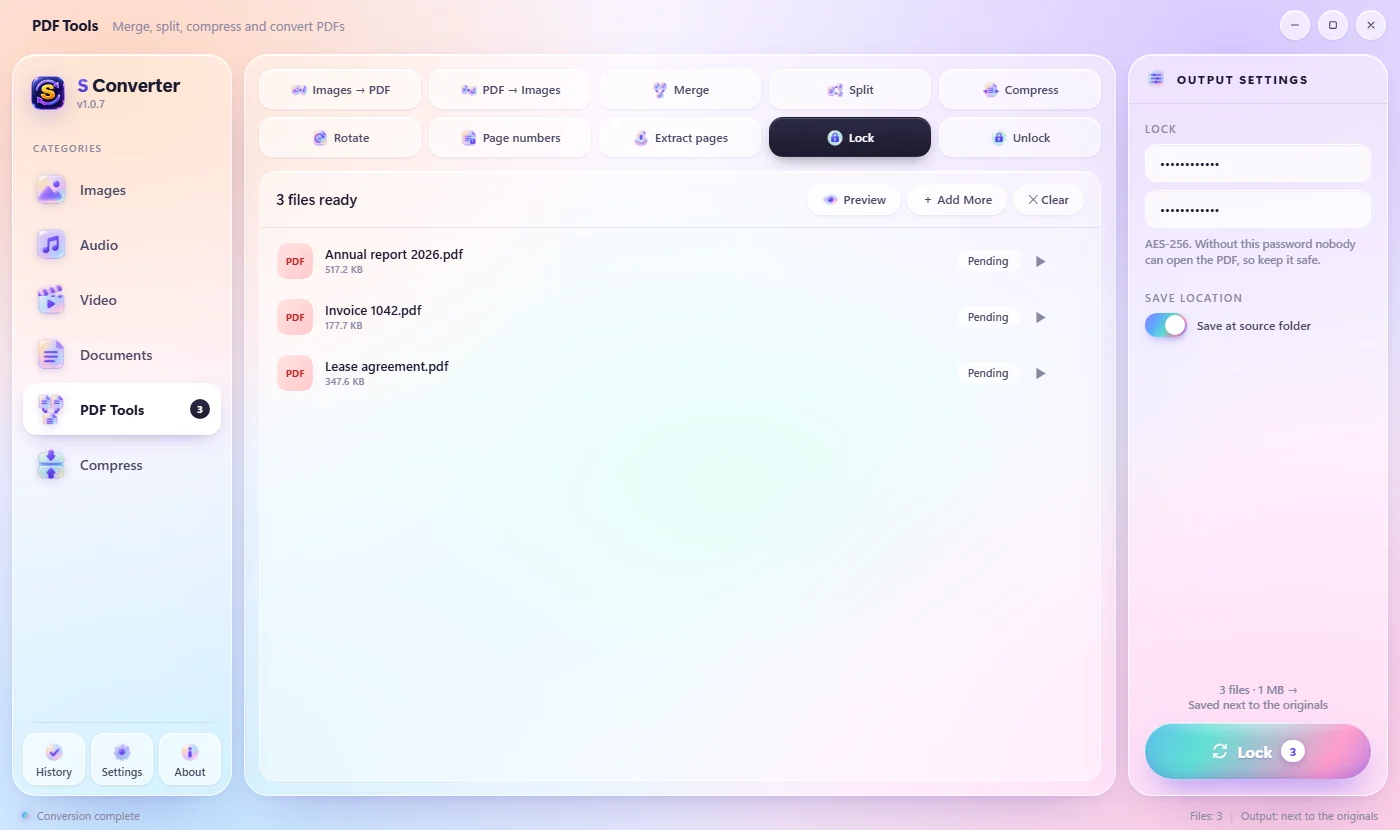
Lock a PDF
- Open PDF Tools and choose Lock.
- Drop in one or more PDFs.
- On the right, type a password, then type it again.
- Press Lock. The locked copy is saved as name_locked.pdf.
Unlock a PDF
- Open PDF Tools and choose Unlock.
- Drop in the PDF.
- If it asks for a password to open, type it on the right.
- Press Unlock. The copy, name_unlocked.pdf, has no password and no limits on printing or copying.
Good to know
AES-256
The same strong encryption banks use. Without the password, nobody can open the file.
Private
Your documents are never uploaded to a PDF website.
Originals untouched
Locking and unlocking always make a new copy.
Questions
I forgot the password of my PDF. Can it unlock it?
No. Unlock removes a password you know. Nobody can open an AES-256 PDF without its password, which is exactly what makes locking safe.
Will the person I send it to need special software?
No. Any PDF reader asks for the password: Edge, Chrome, Adobe Reader, phones too.
Can I lock several PDFs at once?
Yes. Drop them all in; each gets its own locked copy with the same password.
Keep learning
Get S Converter
Free, no ads, no account. Images, video, audio, documents, PDFs and archives, all converted on your own PC.
