
Tutorial · free for Windows 10 and 11
Split, rotate, number and extract PDF pages
S Converter’s PDF Tools do the everyday PDF jobs without Acrobat and without uploading your documents anywhere.
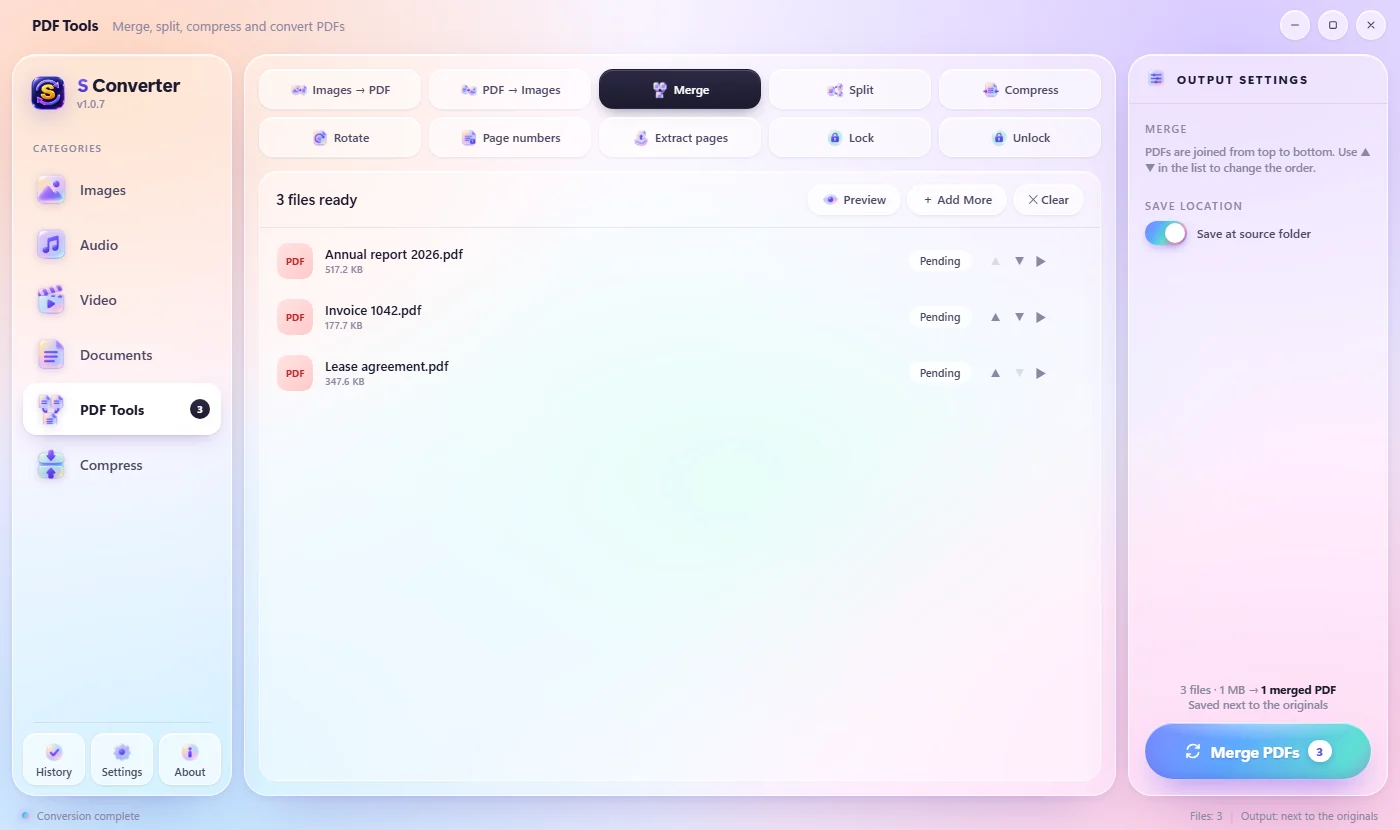
Use a PDF tool
- Choose PDF Tools in the sidebar.
- Pick a tool along the top: Split, Rotate, Page numbers, Extract pages, Merge, Compress, Images → PDF or PDF → Images.
- Add your PDF and set the options on the right (see below).
- Press the button at the bottom right. The result is saved next to the original.
The options
Split: Every page makes one PDF per page; Page ranges such as 1-3, 4-8, 9- make one PDF per range (9- means page 9 to the end). Rotate: ↻ 90°, 180° or ↺ 90°. Page numbers: “Page 1 of 9”, “1 / 9”, “Page 1” or “1”, at the bottom centre, bottom right or top right. Extract pages: list the pages to keep, in the order you want, like 1, 3-5, 9-.
Good to know
Clear names
Results are named after the original: _page1, _rotated, _numbered, _pages.
Text stays text
Pages aren’t turned into pictures, so text stays sharp and searchable.
Private
Contracts and bank statements never leave your PC.
Questions
Can I reorder pages?
Yes. Extract pages keeps them in the order you type, so “3, 1, 2” puts page 3 first.
Can I split a PDF into two halves?
Yes. Choose Page ranges and type, for example, 1-10, 11-.
Does it work on scanned PDFs?
Yes. Every tool works on any PDF, scanned or not.
Keep learning
Get S Converter
Free, no ads, no account. Images, video, audio, documents, PDFs and archives, all converted on your own PC.
