
Tutorial · free for Windows 10 and 11
Make files fit a size limit
Upload forms, email and chat apps all have limits. Instead of trying quality settings until one fits, tell S Converter the limit and let it find the best result under it.
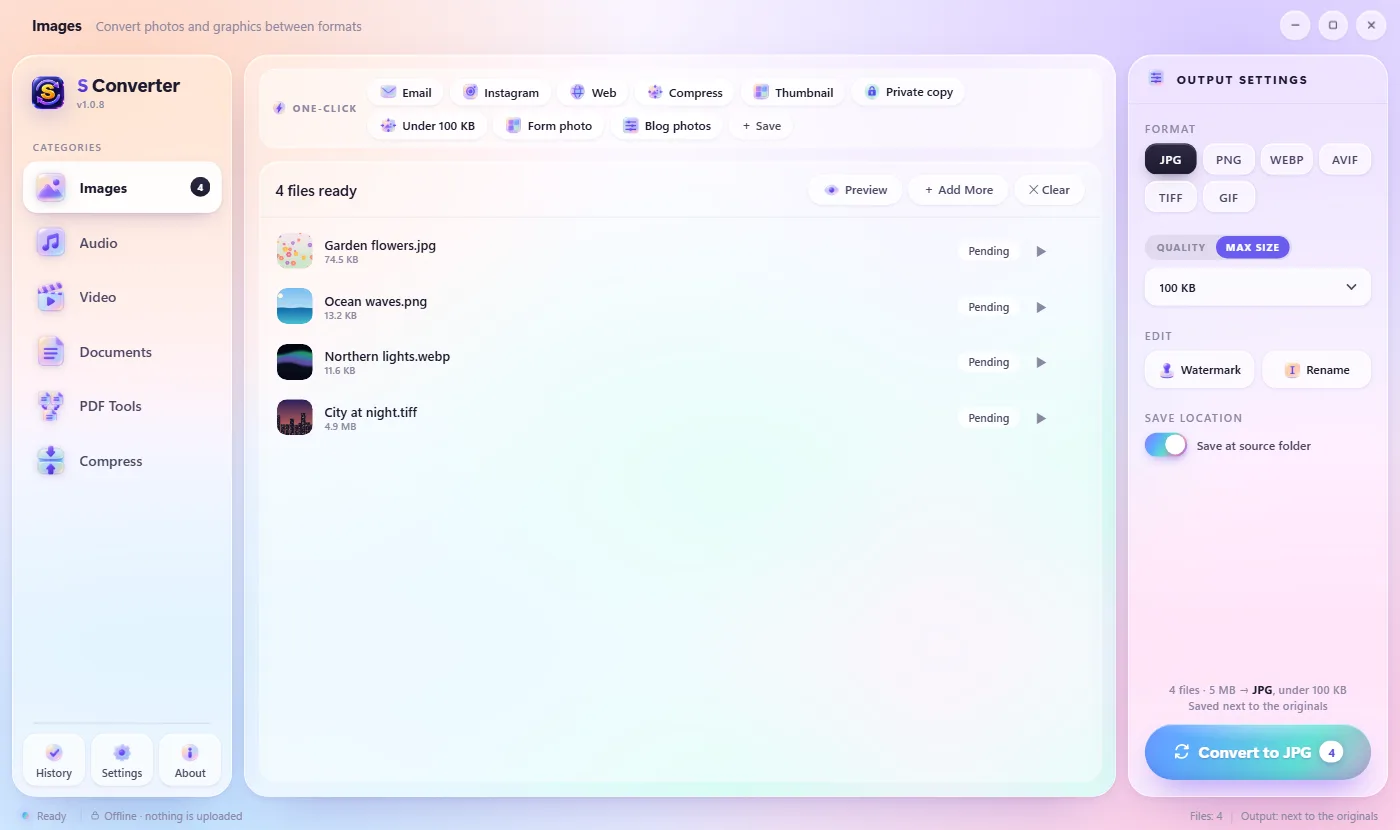
Set a maximum size
- Open Images, Compress or Video and add your files.
- On the right, switch Quality to Max size.
- Pick a limit: 50 KB to 5 MB for photos, 8 MB to 100 MB for video, or Custom… to type your own.
- Press Convert. The summary above the button shows the limit, for example under 100 KB.
How it fits
Photos get the highest quality that fits; S Converter only makes the picture smaller in pixels when quality alone isn’t enough. Videos get a bitrate worked out from their length, and a second, slightly smaller try if the first lands over. If a limit can’t be reached, you get the smallest version possible and a message saying so.
Photos for forms
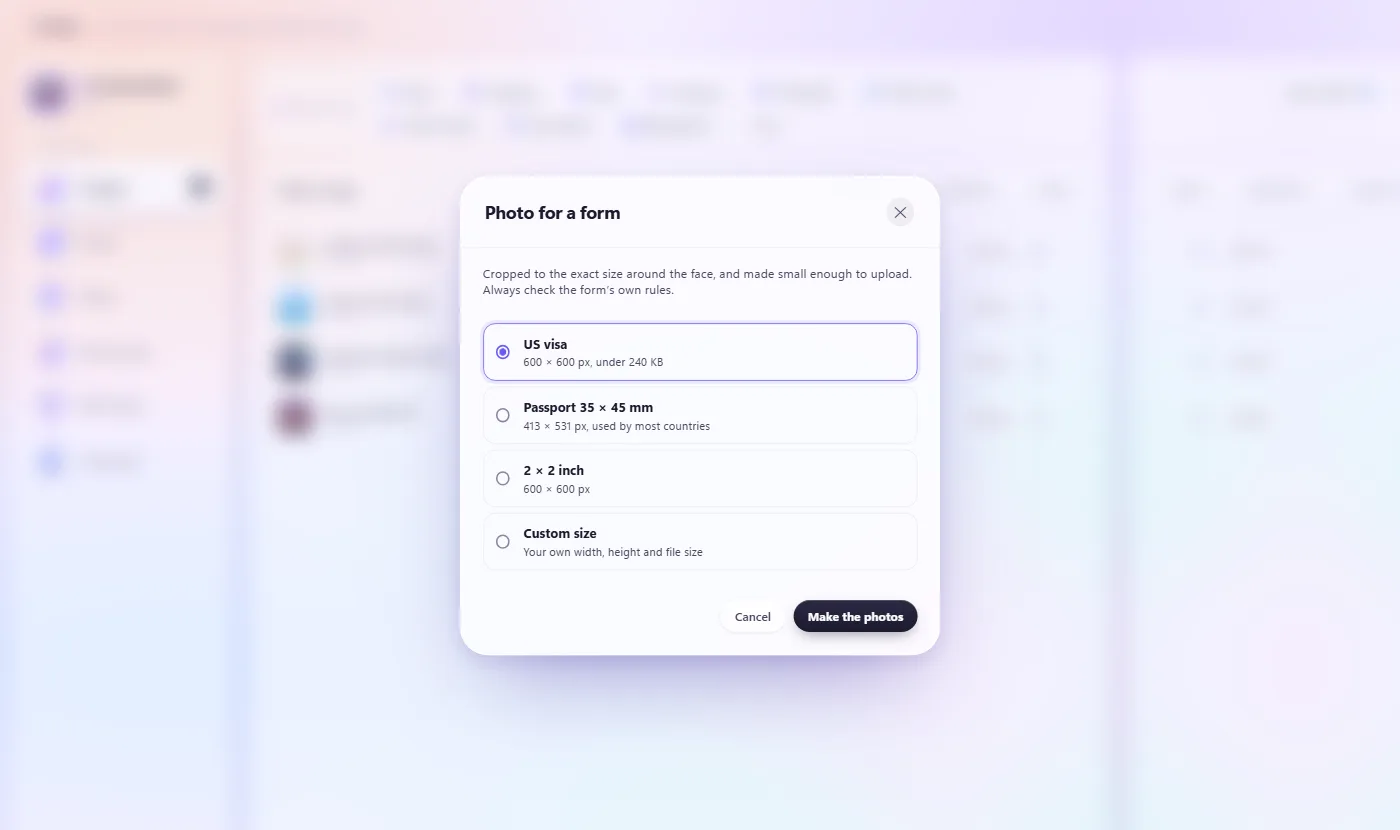 Press Form photo in the One-click row and choose US visa (600 × 600 px, under 240 KB), Passport 35 × 45 mm (413 × 531 px), 2 × 2 inch or Custom size, then Make the photos. The photo is cropped to the exact size around the face. See Make a US visa photo.
Good to know
One click
The Under 100 KB (images) and Email (video, under 20 MB) presets fit straight away.
Remembers
Your last limit for photos and for video is kept for next time.
Save it
Save a limit you use often as your own preset, like Under 200 KB.
Questions
Does it work on the Quick Convert wheel?
Yes. Under 100 KB, Form photo and video Email are on the Presets page.
Can I keep PNG as PNG?
Yes: use Compress with Max size; each file keeps its own format.
Keep learning
Get S Converter
Free, no ads, no account. Images, video, audio, documents, PDFs and archives, all converted on your own PC.
